
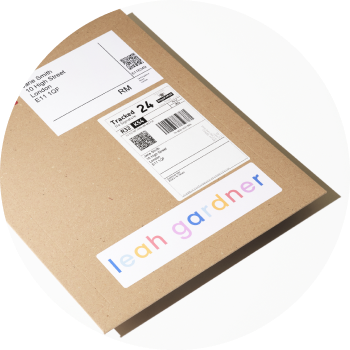
This guide walks you through how to drop ship art prints with Squarespace and creativehub, step by step. theprintspace fulfils every order — printing, framing and shipping from facilities in the UK, Germany and the USA.
Step 1: Sign up for your free creativehub account
Sign up for your creativehub account. If you already have an account, simply login.
Step 2: Create your print products in creativehub
- Go to the Sell Art section of the creativehub sidebar and choose Create Products.
- Design your print products — choose papers, framing, mounts, edition sizes, certificates and packaging. Follow the quick tutorial to set up your products, apply prices and sizes.
Step 3: Create your store on Squarespace
- Go to Squarespace to sign up for an account and choose your subscription plan. Our integration will work with any subscription plan that has the commerce feature i.e. a shop.
- Once you have created your account, choose a template and design your store. Squarespace offer a wealth of templates with a focus on e-commerce.
- Next, select your desired store currency and measurement preferences — this will ensure we import your products with the desired values.
- To choose measurement preferences, from your main Squarespace menu select: 'Settings' > 'Language & region' > 'Measurement standard'.
- To choose store currency preferences, from your main Squarespace menu select: 'Commerce' > 'Payments' > 'Store currency'.
- You need to enable pages in your Squarespace settings.
Step 4: Connect your creativehub store with Squarespace
- Navigate back to your creativehub account.
- Access your main setting menu by clicking your name/avatar in the top right.
- Next, select 'Art store settings' from the drop down.
- Go to 'Integrations' from the left hand side menu options.
- Click the 'Connect' button next to the Squarespace logo.
- Clicking 'Connect' takes you to a Squarespace page where you are asked if you would like to connect your store with creativehub. Authorise this connection.
- Once connected, you'll be auto directed back to your creativehub account. Notice Squarespace now displays as connected.
Step 5: Import creativehub products to your Squarespace store
- Once your prints are priced (step 2), these will be listed in your creativehub account in the 'Product list'.
- This is located in 'Art store settings' > 'Product list'.
- Next, click 'Import all' if you wish to push all your products to Squarespace. Alternatively, import products individually.
- Once imported, you'll see the import date in the 'last imported' column.
- Your imported products can be found in your Squarespace account by selecting 'Commerce' > 'Inventory'.
- To list your product for sale, click the product name, then change the 'visibility' from 'hidden' to 'public'.
Step 6: Add a payment card to enable order fulfilment
When you sell a print in your Squarespace store, the customer pays you the full amount via your chosen payment method. We then debit you separately for the production & shipping costs. You'll need to add a bank card to your creativehub account for us to be able to take this payment.
To do this, click your profile icon in the top right of the page and select 'Art store settings' from the drop down options, then click 'Payment settings' on the left hand side menu.
Step 7: Drive traffic to your new store
Now you're all set up to drop ship art prints with Squarespace. When a print sells, we handle fulfilment and ship direct to your customer. From here, it's time to think about driving traffic to your new store.
If you're still unsure, please get in touch at info@theprintspace.co.uk — one of our friendly team will help.