theprintspace help centre
Home / Drop shipping art with theprintspace / Where do I add branding settings to my drop shipping orders?

Where do I add branding settings to my drop shipping orders?

Searching...
Contents
  1. Where to find your branding settings in the Settings menu
  2. In your Media Library
  3. Related articles

You add the branding settings for your drop shipping orders in two places in the Settings menu, plus your Media Library.

Where to find your branding settings in the Settings menu

  • Settings → Account — set your Artist name in the Artist details card. This appears on your Certificate of Authenticity.
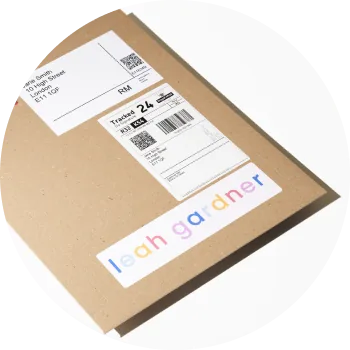
  • Settings → Fulfilment — configure your Branding sticker at the top of this tab. This is a biodegradable packaging sticker that ships with every order.

In your Media Library

Upload your branding assets in your Media Library (left sidebar → Media Library):

  • Logo — for your Certificate of Authenticity
  • Signature — for your Certificate of Authenticity
  • Letter insert — a personalised A4 insert to accompany the print

Once these are set up, they apply automatically to every drop shipping order. You can preview them before publishing a drop to make sure they look right.

Related articles

  • What branding can I add to my drop shipping orders?
  • How do I add branding to my dropshipping order packaging?
  • How to upload your custom insert and add it to your art print products?
Updated on 9 July 2026
Tagged: brandbrandingcustomiconlogopackagingpersonalisationsettingsstickerupload

Was this article helpful?

Yes, thanks! Not really

Contents

  1. Where to find your branding settings in the Settings menu
  2. In your Media Library
  3. Related articles
Creativehub Help
info@theprintspace.co.uk
+44 (0) 207 739 1060